
THE COAST AHEAD USER GUIDE
Start here.
Keep moving forward.
From your first setup to your weekly check-in. Here’s how to make Coast Ahead part of your routine.
01 / ON YOUR COMPUTER
Install Coast Ahead.
You’ll need a 64-bit Windows computer running Windows 10 or newer. This is a desktop app, with no Mac or mobile version. Once installed, everyday use works without internet.
- Download the installer from the purchase delivery link when sales open. If it comes in a ZIP, right-click the ZIP and choose Extract All.
- Close Coast Ahead if it is already open. Run the setup file from the extracted folder.
- Follow the installation prompts and keep the default folder unless you have a reason to change it.
- Open Coast Ahead from its desktop or Start menu shortcut. A fresh profile opens the setup guide.
Preview edition: run Coast-Ahead-Customer-Preview-Setup.exe and open Coast Ahead Preview. It installs beside your personal Coast Ahead app and keeps separate records. You do not need to uninstall your personal version.
The current preview installer is unsigned. Windows may display an unfamiliar-app or publisher warning. Only use a download you trust. This website does not currently accept purchases or provide a customer release download.
02 / YOUR STARTING POINT
Make the plan yours.
Have your current odometer, loan details, and fund balances nearby. Enter what you actually have today. Targets and estimates belong in the planning fields.
- Your starting point. Enter your name if you’d like, the date you want to track from, your vehicle, and its odometer reading.
- Your current position. Enter your loan balance, APR, payment, a current trade valuation if you have one, and the money already set aside in each fund.
- Your income and goals. Add sources for driving and other work. Set realistic weekly income estimates and your car and emergency-fund targets.
- Your plan. Choose a car-savings percentage, a gas reserve, savings contributions, expected costs, and mileage assumptions.
- Review. Check your numbers and choose Start my plan.
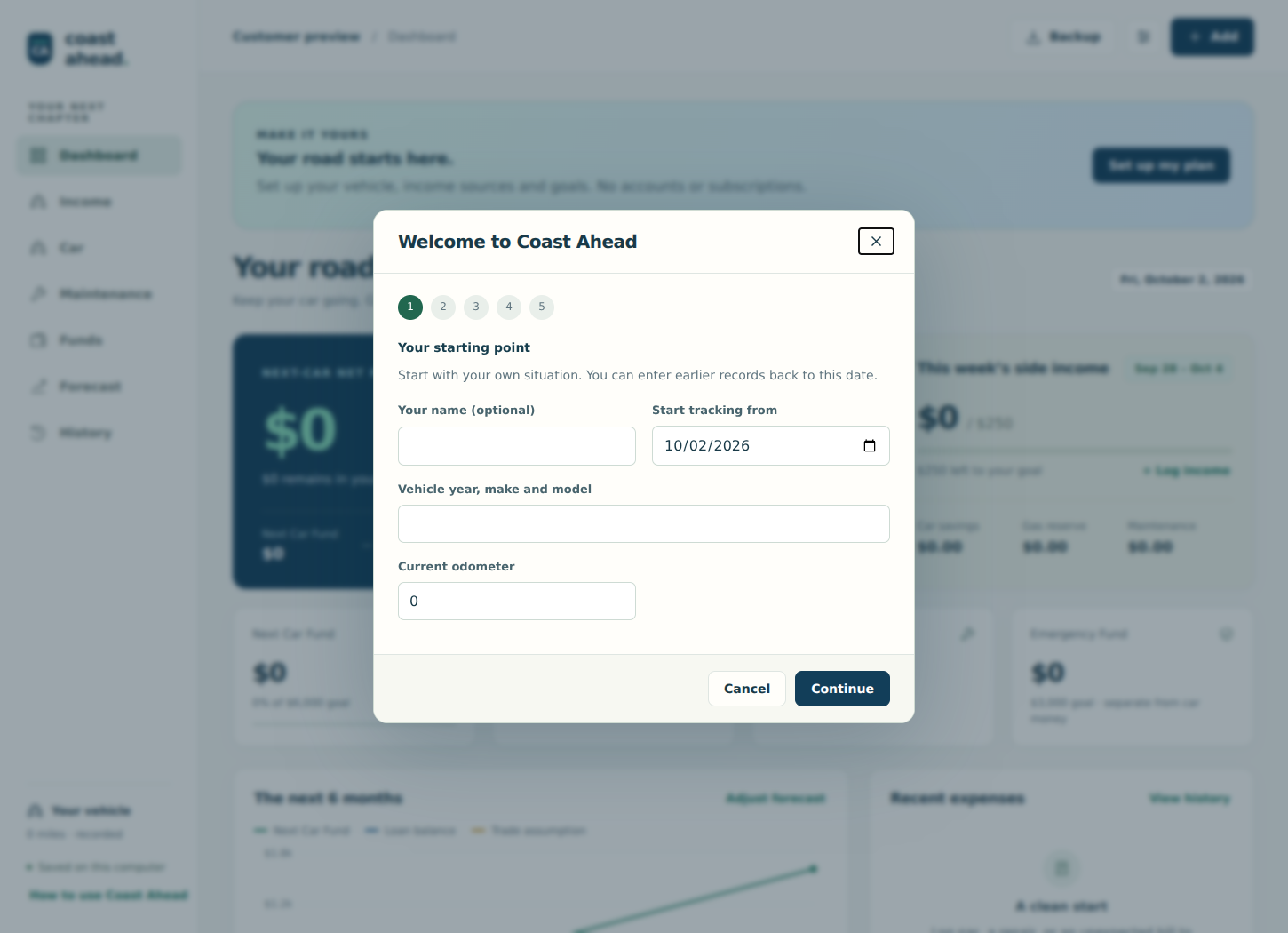
Opening balances are not new income. They establish where you began. Later deposits, withdrawals, and expenses should be dated entries so your progress has a clear history.
03 / AFTER A SHIFT OR AT WEEK’S END
Log what you earned.
- Open Income and choose Log income.
- Select the source and date, then choose a session or weekly total.
- Enter earnings and, for driving work, hours, miles, and any gas recorded with that session.
- Attach a receipt if needed and save. Check the resulting allocation on your dashboard.
Use a separate source for each platform or type of work you want to track. Other side income can be recorded without vehicle miles or session gas. If hours are unknown, the app avoids presenting a misleading combined hourly rate.
Choose one method per source per week. Log individual sessions or one weekly total. Entering both would count that source’s earnings twice. Separate sources can each have their own weekly total.
Be consistent about platform fees.
If you enter a payout after platform fees, don’t subtract those same fees again as an expense. Keep the same method across your records so comparisons mean something.
04 / KEEP THE RECEIPT WITH THE RECORD
Record costs once.
Use the expense entry for gas, oil changes, repairs, insurance, equipment, or other operating costs. Enter the date, category, amount, vendor when helpful, and any business-use share.
- Gas already entered with a driving session? Attach the receipt there. Don’t add the same purchase again as a separate gas expense.
- A shared personal/business purchase? The full purchase reduces its fund. The business-use share affects the profitability estimate.
- An unexpected household bill? Record it against your emergency fund if that is where you funded it.
Add a receipt.
Choose the receipt file while creating or editing an entry. Supported formats are JPG, PNG, WebP, and PDF, up to 10 MB per file. Images can be previewed inside the app; PDFs open in your installed PDF viewer.
Coast Ahead copies the attachment into its records folder. Moving the original file afterward won’t break the attachment. Matching receipts or similar entries may trigger a duplicate warning; check the existing entry before confirming another purchase.
Attachments are not automatic data entry. You still type the receipt’s amount and details. Automatic receipt reading is not included.
05 / GIVE EACH DOLLAR A PURPOSE
Know what each balance means.
| Fund | What it tracks |
|---|---|
| Car savings | Money allocated or deposited toward your car goal, less recorded withdrawals. |
| Gas reserve | The gas portion of driving income, less gas purchases recorded in sessions or expenses. |
| Operating / maintenance | Money available for vehicle and business costs after the other allocations and recorded expenses. |
| Emergency | Separately recorded emergency deposits and spending. |
These are tracking categories. Coast Ahead does not move money between real bank accounts. Keep your real balances and entries up to date.
Changing your allocation plan
Each newly recorded week keeps a snapshot of its allocation rules. Changing your default percentage or gas reserve applies to newly recorded weeks, while existing weeks retain their saved policy. A newly entered past week uses the defaults in effect when it is first recorded. Review any manual weekly overrides when correcting earnings.
Car value and loan balance
Record dated loan payments, lender balance corrections, and trade offers in the car area. Estimated interest is a planning aid; compare the app with your lender’s current statement.
06 / LOOK A LITTLE FURTHER AHEAD
Ask “what if?”
Open Forecast to explore your plan over time. Change income, savings, loan payments, gas and maintenance costs, mileage, or other side-income assumptions. You can also explore a missed driving month, repair, or car breakdown.
- Actuals come from saved entries.
- Projections come from assumptions and do not create transactions.
- A driving pause or breakdown stops projected driving income as configured; separate non-driving income can continue.
- Save assumptions when you want to keep the scenario for your next visit.
A forecast is not a promise. Taxes, replacement-vehicle purchases, towing, and other unentered costs are not automatically included. Use realistic inputs and compare a few scenarios.
07 / PROTECT YOUR PROGRESS
Back up before you need it.
The app saves locally and creates automatic record backups. Those are useful for recovering from an edit, but copies on the same computer do not protect against a lost or failed drive.
Make a complete backup
- Use the app’s Backup controls and choose a complete backup with receipts.
- Save the
.coastbackupfile to another drive or a trusted storage location. - Keep a dated copy regularly and before a major change or computer move.
Restore or move to another computer
- Install and open the appropriate Coast Ahead edition on the destination Windows computer.
- Use the restore control and select your complete backup.
- Review the restore preview carefully. Confirm only when you intend to replace that app profile’s current records.
- After restoring, check a balance and an attached receipt.
Records-only JSON backups are also available, but they do not carry receipt file bytes. Choose a complete backup for a computer move.
Know the limits. Complete backups are limited to 150 MB; record files to 10 MB. If the complete backup becomes too large, close the app and copy the entire records folder to another drive. Data is not encrypted by Coast Ahead.
Where are my files?
The standard app uses %APPDATA%\Coast Ahead\records. The preview uses %APPDATA%\Coast Ahead Preview\records. Use the app’s data-folder and backup-folder commands to open them. Uninstalling keeps these records. The two editions do not automatically share or sync data.
08 / A SIMPLE CHECK-IN
Your end-of-week routine.
- Reconcile earnings. Check each source against your payout records and make sure nothing appears twice.
- Catch up on expenses. Add missing costs and attach receipts.
- Review the funds. Compare balances with the money you have actually set aside.
- Check your car details. Add any loan payment, corrected balance, odometer reading, or new trade offer.
- Look ahead. Update assumptions if next month will be different, then make a complete backup.
WHEN SOMETHING LOOKS OFF
Common questions.
I installed an update and my information is still there.
That is expected. An update loads the records already saved on your computer. To review a fresh customer experience beside your own app, use Coast Ahead Preview. Reinstalling the same edition is not a reset.
My gas or expenses look too high.
Check whether the same gas purchase was entered with a session and as a separate expense. Also check duplicate receipts and whether platform fees were already removed from the earnings amount you entered.
My forecast does not match my dashboard.
The dashboard shows saved records. A forecast adds assumptions about the future. Check the starting balances, time period, income estimates, costs, and any pause or breakdown scenario.
My totals are wrong after changing the plan.
Review the dates and sources of your entries, opening balances, and any custom weekly allocations. Existing weeks retain their saved policy; changing defaults does not automatically rewrite their history.
I moved an original receipt and cannot find it.
The app stores its own copy for an attached receipt. Open it from the saved entry. On a new computer, restore a complete backup that includes receipts; a records-only JSON file does not include those attachments.
Can I use the online calculator as my tracker?
No. The website example does not save a financial history. It demonstrates one weekly allocation. Use the installed app to keep records, receipts, and your own plan.
Ready to see the bigger picture?
Explore the software, try a weekly allocation, and see what is included.
Explore Coast Ahead · $24.99